Team, profiles and invitations
Add team members, set job role, employment and home floor, invite people one at a time or in bulk, and see who has joined.
- Published
- Updated
- Screenshots
The team list
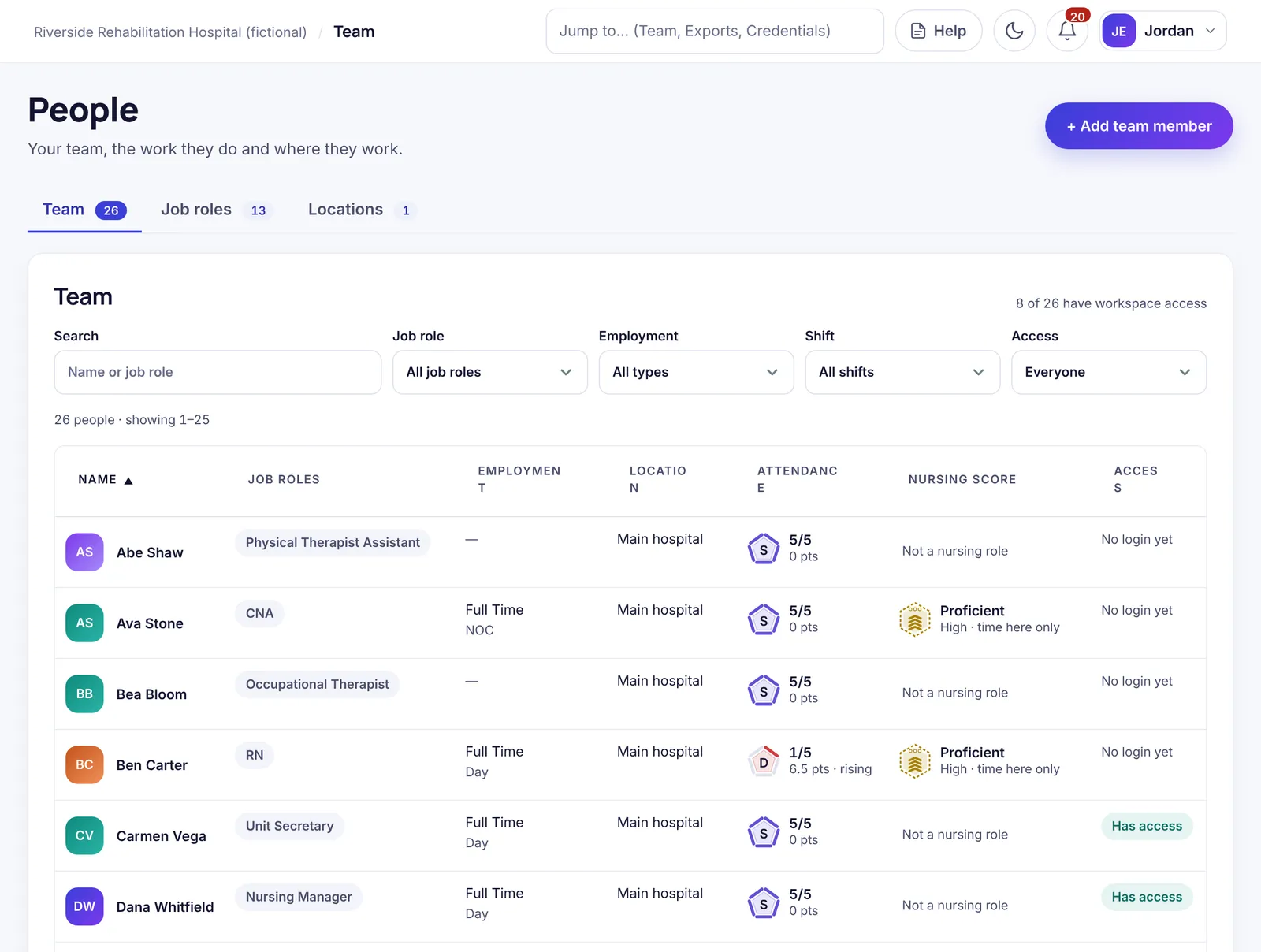
PeopleTeam (menu path) lists everyone with job role, employment, location, attendance, Nursing Score and access. Filter by role, employment type, shift or access. Open a name for the full profile. Job roles and Locations are tabs on the same page.
Add a person
+ Add team member
Name, job role, employment type (Full Time, Part Time, Per Diem, Agency), hire date (seniority), home floor (optional), usual shift.
Put them on the schedule
A profile works on the schedule before its owner ever signs in.
Invite them
On PeopleStaff & access (menu path), Invite sends an email or text with their access level.
Invite everyone at once
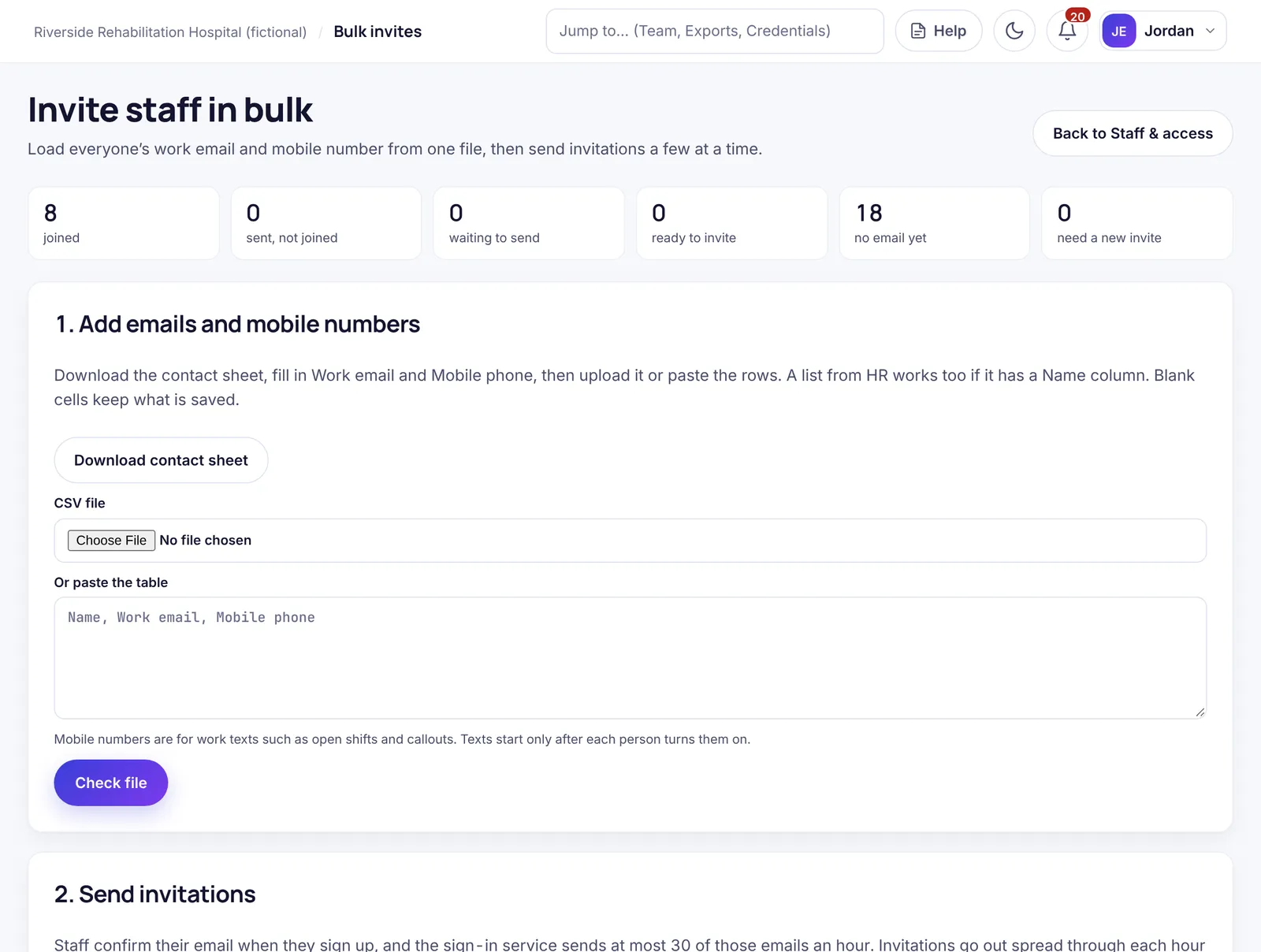
Download contact sheet
A spreadsheet of everyone with their AttuneOps id.
Fill in Work email and Mobile phone, then upload or paste it
A list from HR works too if it has a Name column. Check file matches each line; nothing is saved yet.
Resolve and save
Lines with no match or two matches are listed first.
Send invitations a few at a time
Who has joined tracks who accepted.
Related
Screenshots come from a fictional demo hospital, so names and numbers will differ from yours. Something here out of date or unclear? Email support@attuneops.net.