Notifications and your calendar
Choose email, text or phone alerts for each kind of notice, set quiet hours, get shift reminders, and put your shifts in your calendar.
For staffFor managers
- Published
- Updated
- Screenshots
Your inbox
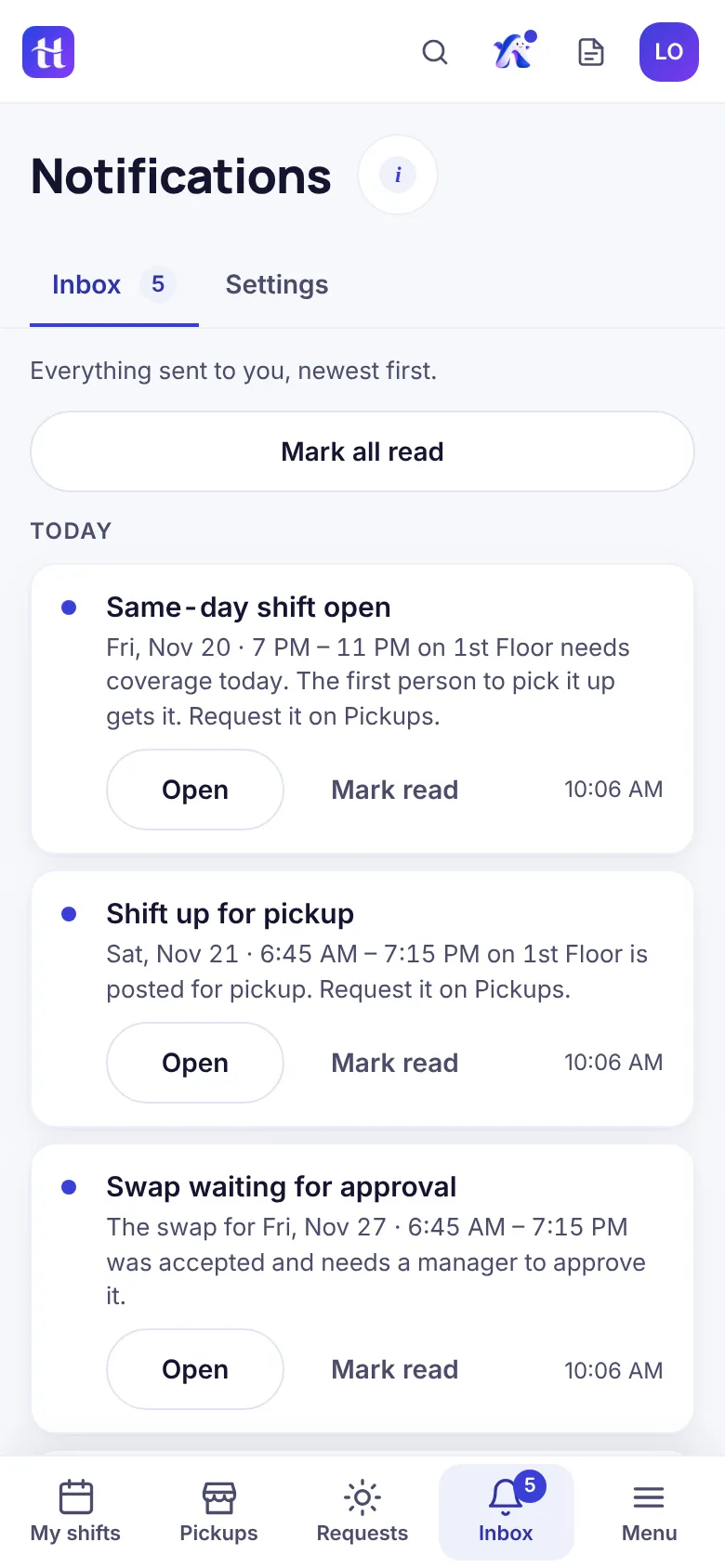
Every notice lands in your inbox (the bell, or Inbox on a phone). Open goes to the thing it is about; Mark all read clears it.
Choose how you are told
- Under How you get notified, each kind of notice (open shifts, callouts, swaps, time off, schedule changes, reminders…) has Email, Text and Push boxes.
- Alerts on this device turns on lock-screen alerts. On iPhone, install the app to your home screen first.
- Texts stay off until you turn them on and agree to texts. Quiet hours hold texts and phone alerts overnight.
- Shift reminders come the day before and 2 hours before each shift. Turn either off here.
Put your shifts in your calendar
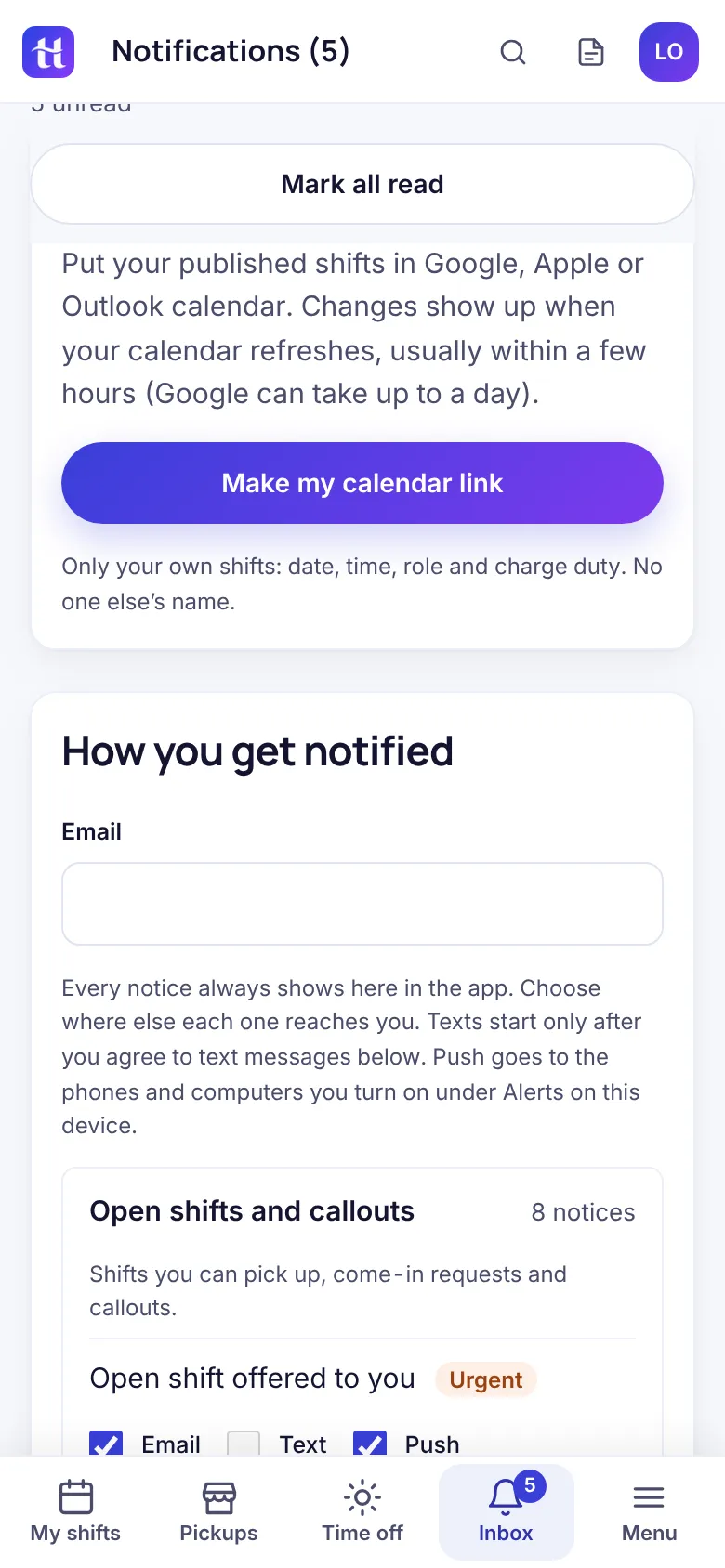
Press Make my calendar link
Add it to Google, Apple or Outlook calendar as a subscribed calendar
Your published shifts appear and update on their own (Google can take up to a day).
The link shows only your own shifts. Make a new link to turn the old one off.
Related
Screenshots come from a fictional demo hospital, so names and numbers will differ from yours. Something here out of date or unclear? Email support@attuneops.net.