Week view, drafts and publishing
Edit shifts on the draft schedule, use bulk edit, copy and templates, then review issues and publish to staff.
- Published
- Updated
- Screenshots
Draft vs published
Every edit goes to a private draft. Staff see only the published version. The top of the page shows how many unpublished changes there are and which version staff see now.
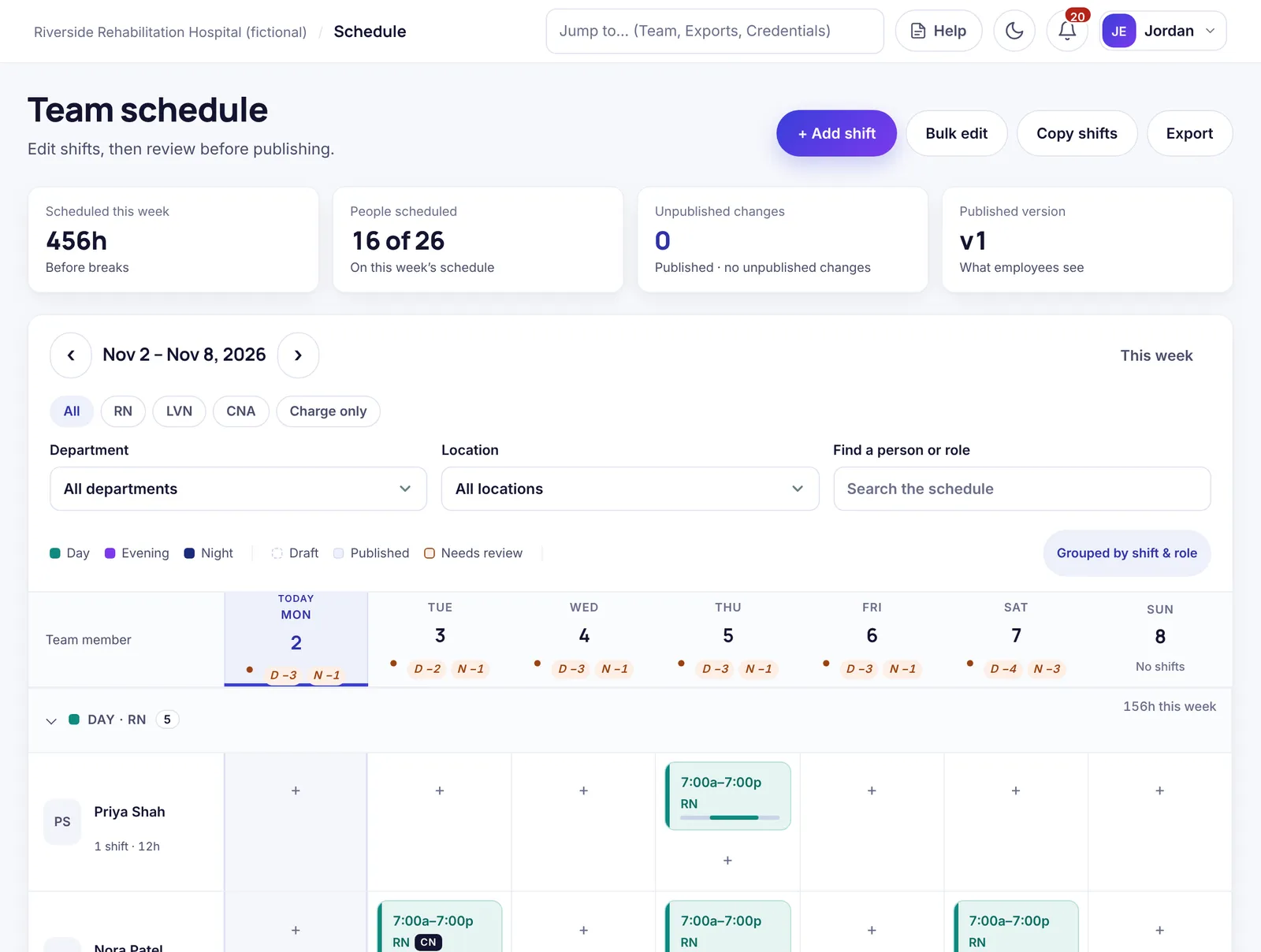
- Filter by job role (RN, LVN, CNA, Charge only), department, location, or search a name.
- Rows are grouped by shift and role. Each day header shows the Day and NOC gap against core staffing.
- A tag on a shift: CN charge nurse, Float, a leave code, or Needs review.
Add or change a shift
Press + Add shift, or + in an empty cell
Pick the person, date, start and end, job role and location.
Save
AttuneOps checks overlaps, approved time off, availability, credentials and ratio as you save. Problems are listed, not hidden.
Change or remove
Open the shift to edit it. Every change can be undone from SchedulePublication history (menu path) under Draft changes.
Bulk edit changes or removes many selected shifts at once (person, role, location or a time shift). Copy shifts repeats a week. Templates saves a good week to reuse.
Review and publish
Scroll to Publication review. It lists every issue in the draft: expired credentials, availability gaps, overlaps and ratio warnings. Fix each one, or open it and record why you are going ahead.
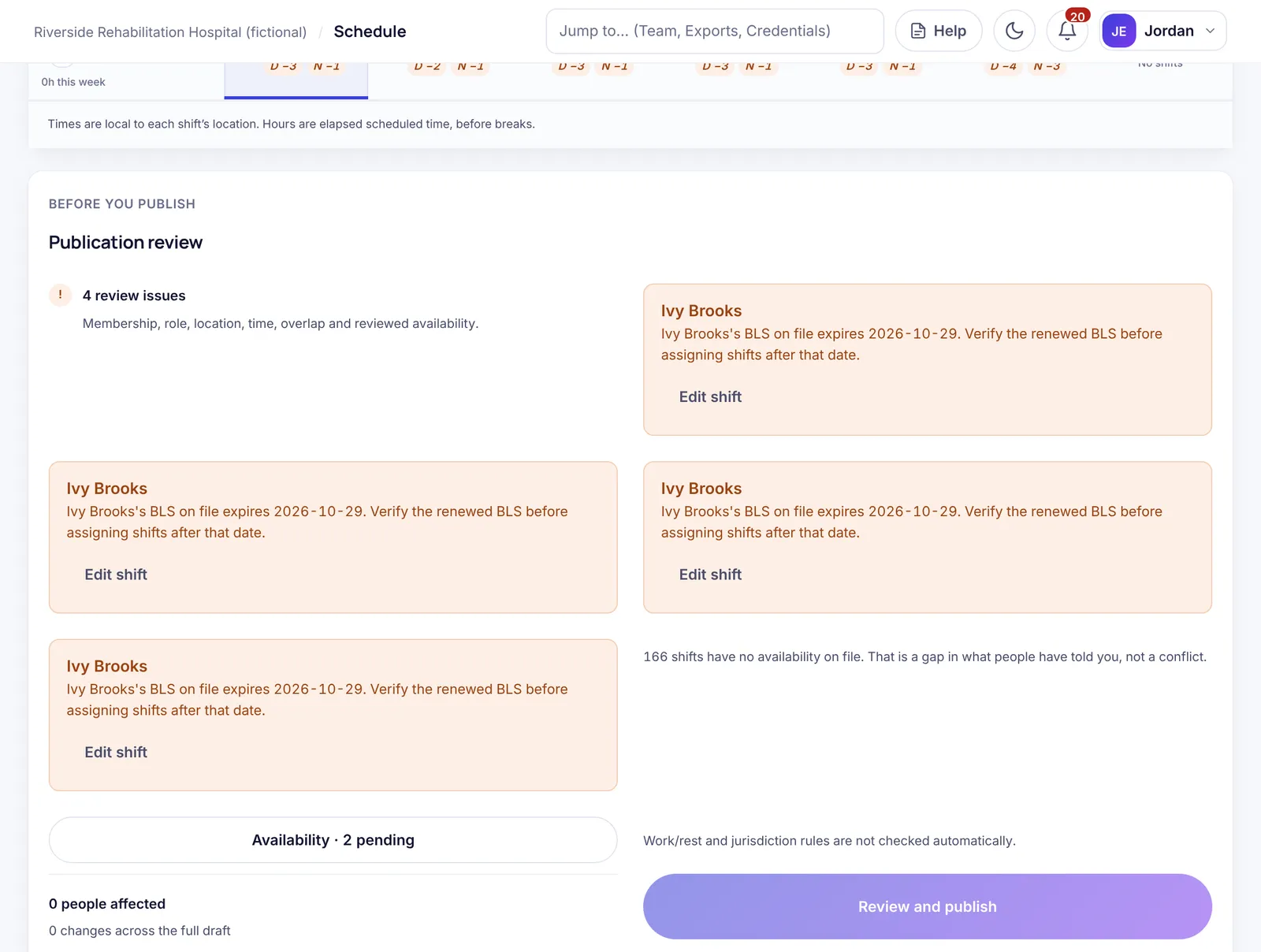
Fix or acknowledge every issue
Blocking issues (such as an expired license) must be fixed. Warnings can be acknowledged with a reason.
Press Review and publish
You see who is affected and how many changes go out.
Confirm
Staff get one notice with their schedule. The version is frozen in SchedulePublication history (menu path) exactly as published.
Publishing is what changes what staff see and get alerts about. Confirming coverage for a callout also publishes that one change.
Publication history and private notes
SchedulePublication history (menu path) keeps every published version exactly as reviewed, with View publication. Draft changes lists the last 50 edits with undo.
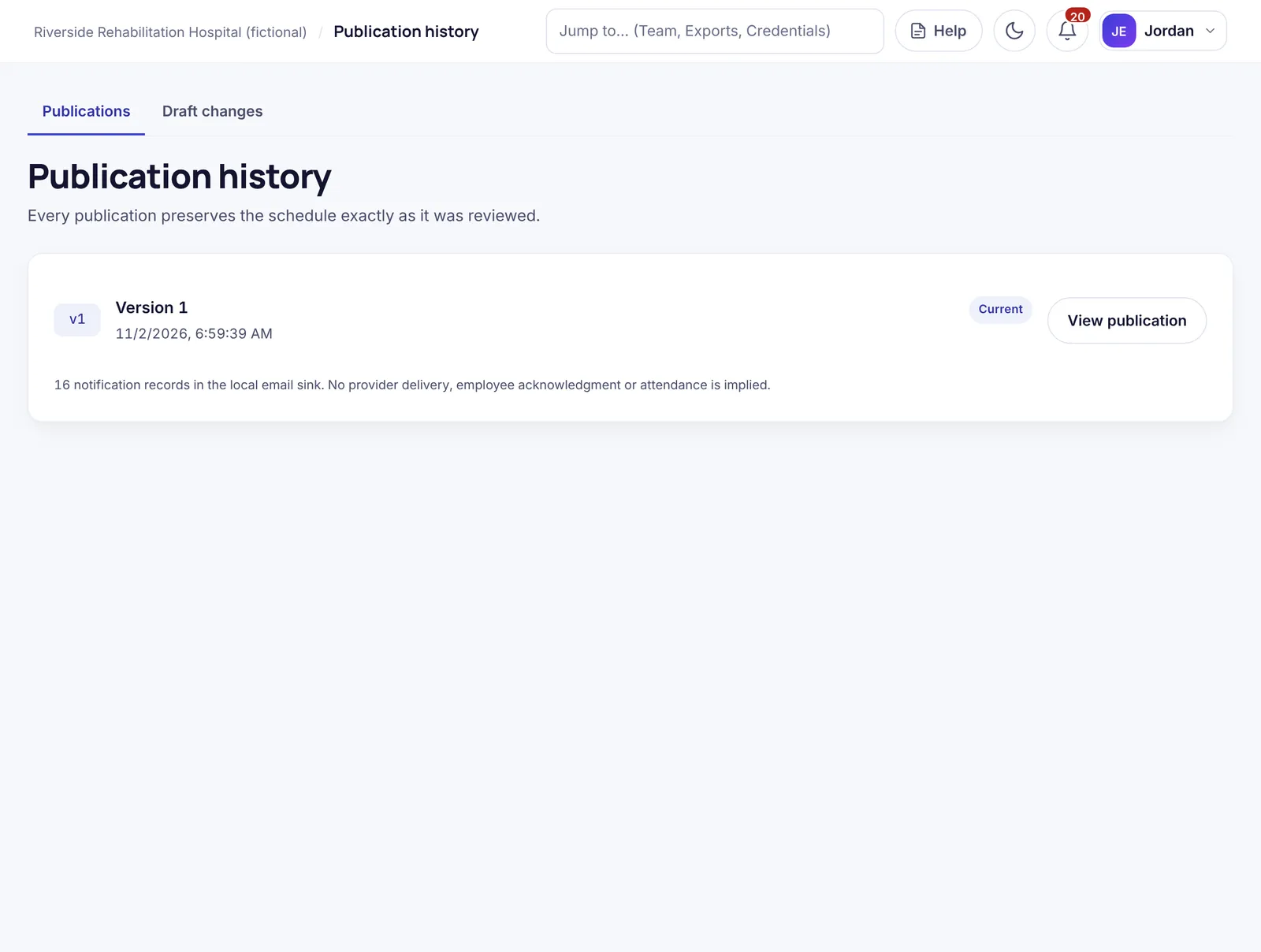
SchedulePrivate shift notes (menu path) holds notes on a shift that only managers can see.
Related
Screenshots come from a fictional demo hospital, so names and numbers will differ from yours. Something here out of date or unclear? Email support@attuneops.net.