Callouts
How staff call out in the app or by text, how charge nurses and managers record and fill them, and what happens next.
- Published
- Updated
- Screenshots
For staff: call out
On ScheduleMy shifts (menu path), open the shift and tap Report absence
Choose the reason. You never have to find a replacement.
Under 2 hours before the shift, also call the charge phone
Text CALLOUT to the AttuneOps number for your next shift (starting within 48 hours), or CALLOUT 11/3 for a date. Texts must come from the mobile number on your profile. The reply confirms the shift and the notice you gave, and never names anyone.
For charge nurses and managers: record and fill
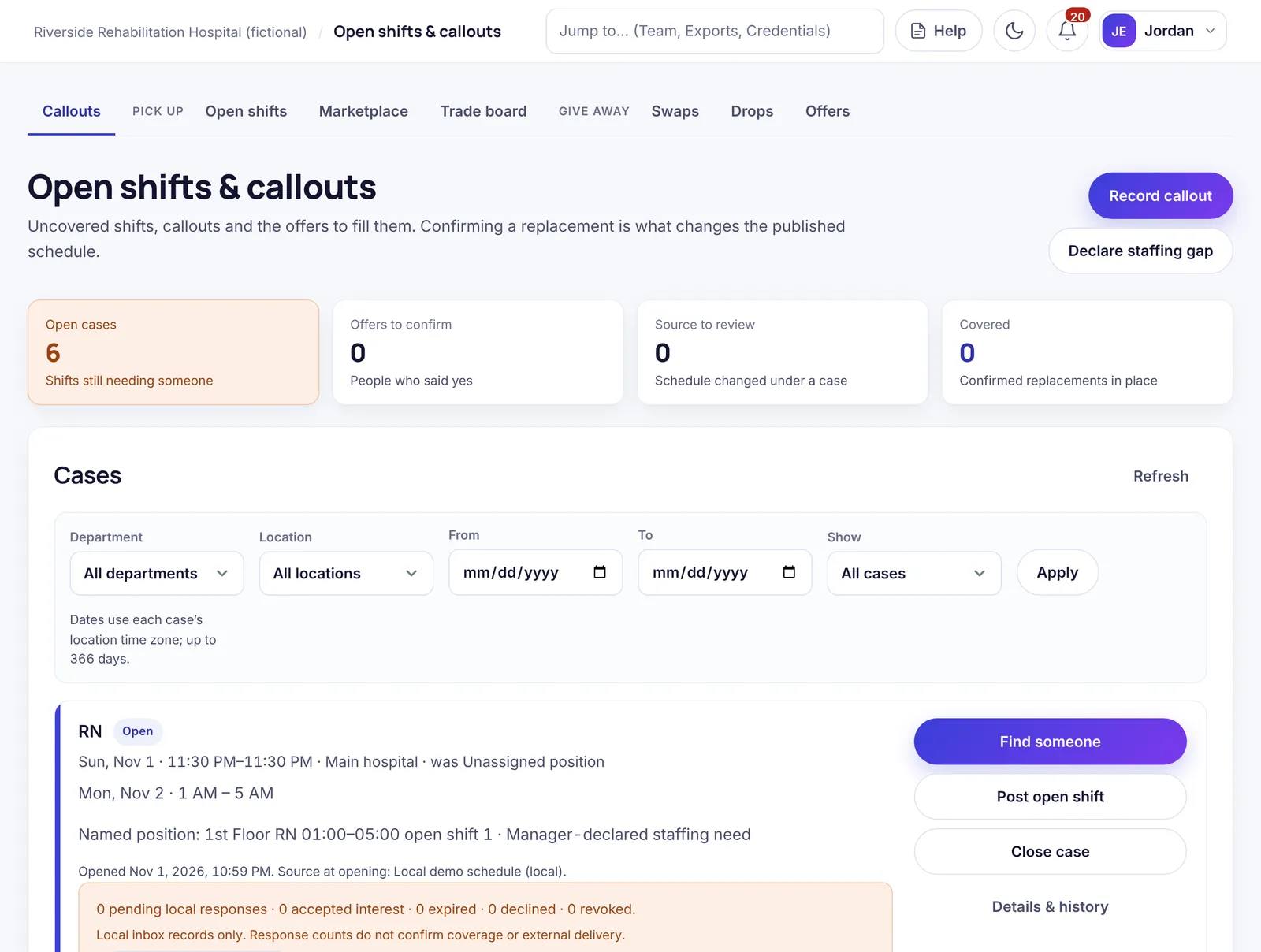
Record it
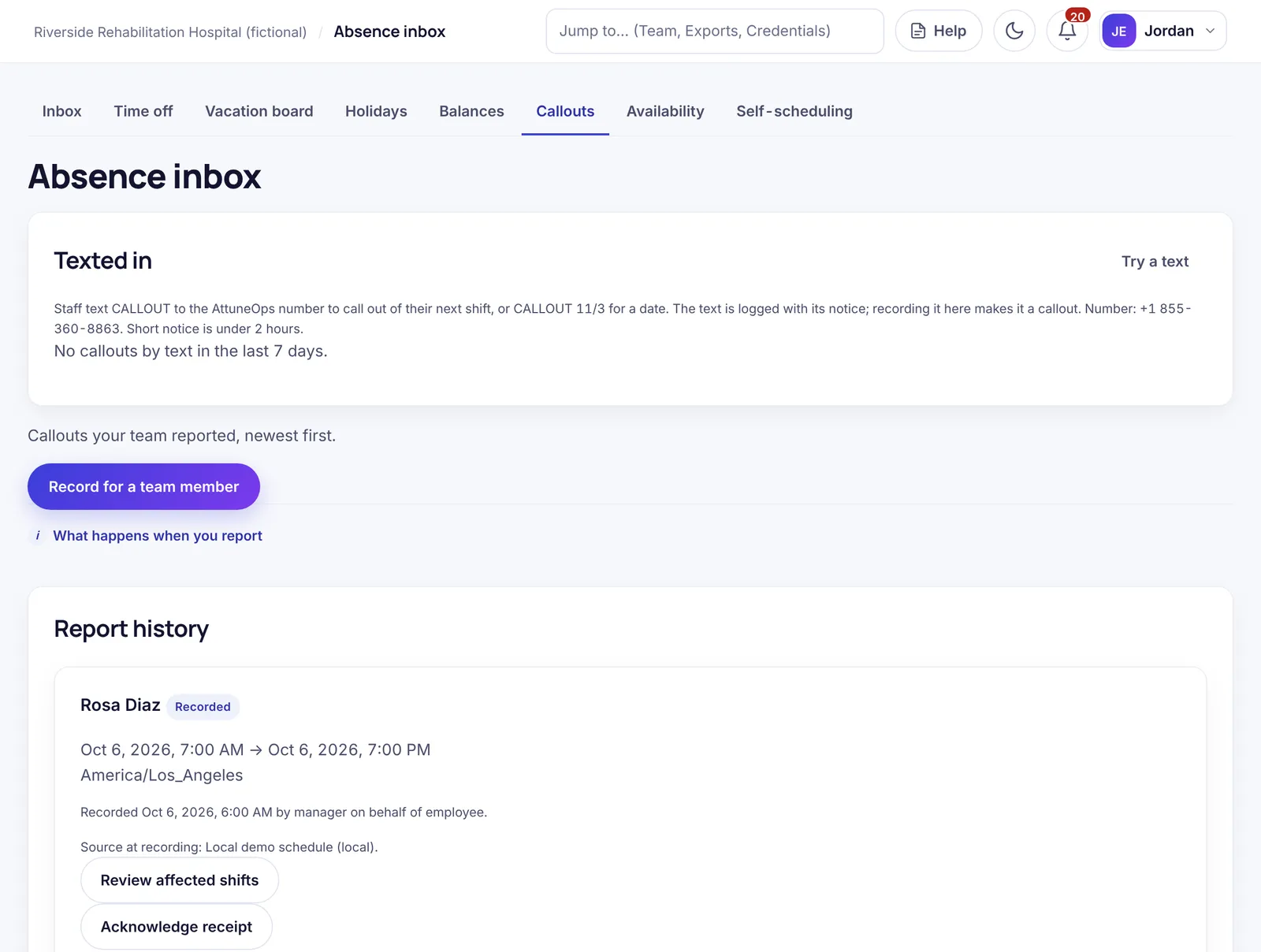
Press Record callout, pick the person and shift, and the reason. Texted-in callouts wait under Texted in on RequestsCallouts (menu path); record one from there the same way. Record for a team member there also records a phoned-in callout.
Fill it
On the case, Find someone ranks eligible staff (no overtime first). Post open shift puts it on the marketplace. Declare staffing gap opens a case for a shift with no callout.
Confirm
Confirming a replacement is what changes the published schedule and tells both people. Close case if it does not need filling.
What happens after a callout
- The charge nurse on that shift and the floor's managers are alerted.
- The person gets no shift reminder for it.
- Attendance: a sick callout counts only if the person's sick hours do not cover it. Protected leave (FMLA, CFRA), approved time off, jury duty and bereavement never count. See Attendance.
- The callout appears on the staffing sheet, the assignment sheet's important info and reports.
Requests → Callouts
RequestsCallouts (menu path) is the callout inbox: recent callouts, acknowledgment, texted-in callouts and their coverage status.
Related
Screenshots come from a fictional demo hospital, so names and numbers will differ from yours. Something here out of date or unclear? Email support@attuneops.net.