Getting started
What AttuneOps does, what stays in UKG and EcoTime, and how to sign in and put the app on your phone.
- Published
- Updated
- Screenshots
Managers: Start here
Nursing Managers see Start here at the top of the menu. It has three things to do once (alerts on your phone, a look around the practice hospital, and Overview), three everyday jobs, and an Ask for help button.
Each step ticks when it is really done, or when you tap I did this. Until all three are done, the same steps sit at the top of Overview.
What AttuneOps is for
AttuneOps is where your hospital's schedule lives. You see your shifts, call out, pick up open shifts, trade or swap, and ask for time off in one place, on your phone or a work computer. Managers build and publish the schedule, fill callouts, approve requests and watch staffing and ratios.
| Use AttuneOps for | Keep using UKG or EcoTime for |
|---|---|
| Your schedule, open shifts, swaps and trades | Clocking in and out |
| Calling out and time-off requests | Meal punches and missed-punch fixes |
| Vacation and holiday sign-ups | Your paycheck and official pay stubs |
| Credentials, classes, announcements | Official leave balances (AttuneOps shows an estimate) |
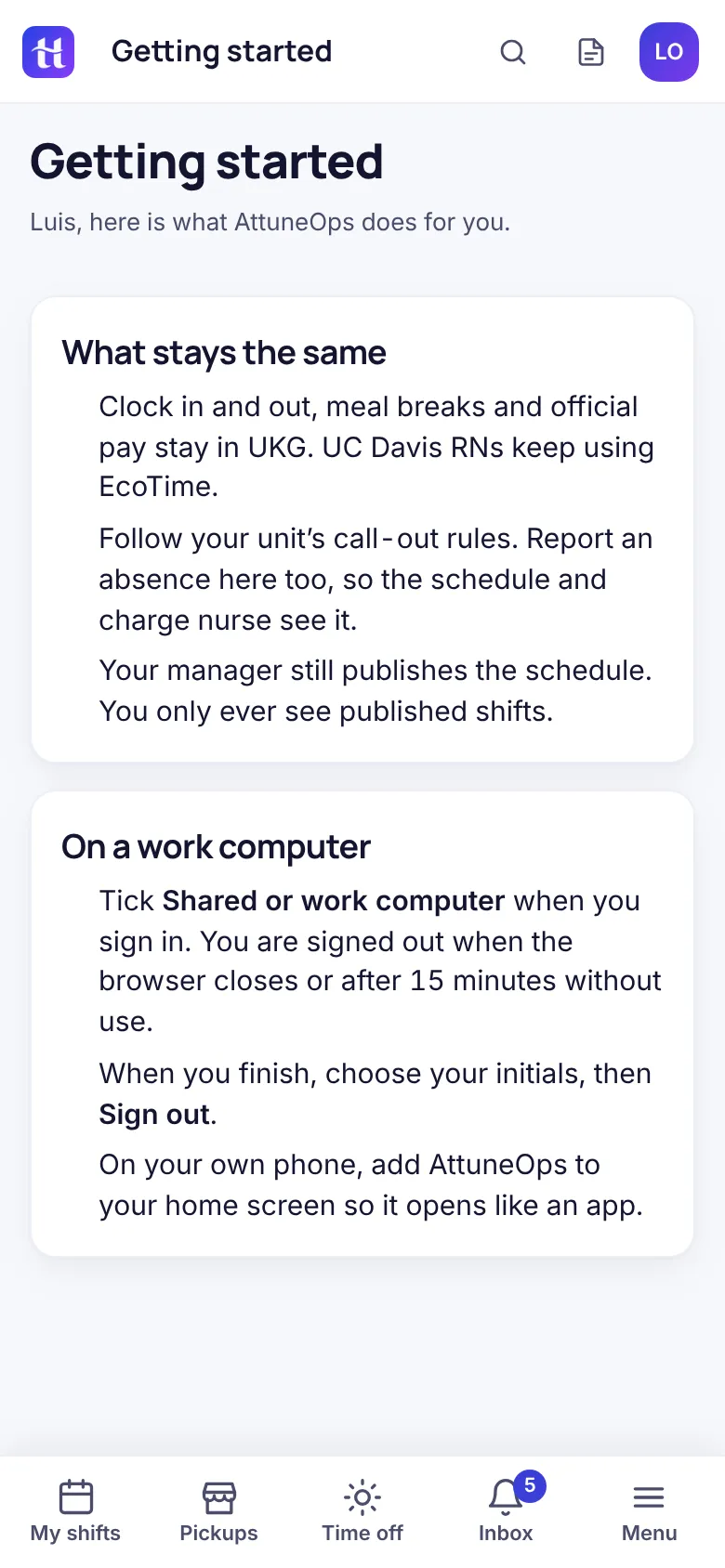
UC Davis RNs keep using EcoTime. All other staff keep using UKG. AttuneOps never changes your pay or punches.
Sign in for the first time
Open the invitation email or text from AttuneOps
Your manager sends it to your work email or mobile number. The link is for you only.
Choose a password, or sign in with the link
Use the same email the invitation went to. If the link has expired, ask your manager to send a new one.
Take the short tour
The first time you sign in, a Get set up card on ScheduleMy shifts (menu path) walks you through phone alerts, your calendar link and a one-minute tour.
Put AttuneOps on your phone
AttuneOps works in your phone's browser, and you can add it to your home screen so it opens like an app and can send lock-screen alerts.
| Phone | How to add it |
|---|---|
| iPhone (Safari) | Tap Share, then Add to Home Screen. Open it from the new icon. Alerts on iPhone only work from the home-screen app. |
| Android (Chrome) | Tap Install on the card that appears, or the browser menu, then Install app. |
Then go to Your name menuNotification preferences (menu path) and turn on Alerts on this device. See Notifications and your calendar.
Find your way around
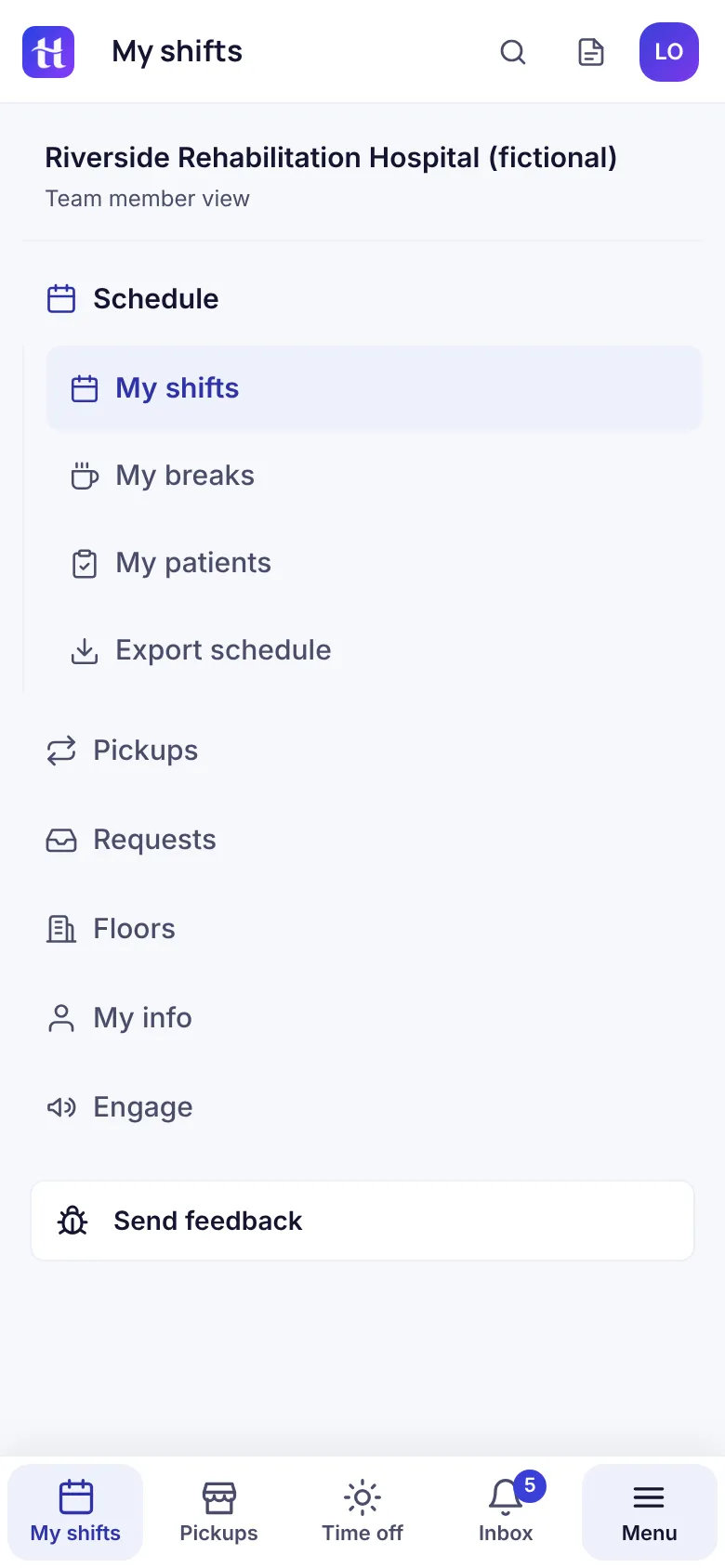
- On a phone, the bar at the bottom has your most used pages. Menu opens everything else.
- On a computer, the menu on the left groups pages by job: Schedule, Pickups or Coverage, Requests, Floors, My info, Engage.
- Jump to at the top finds any page by name. Type a few letters, such as *cred* for credentials.
- Every page has a Help button that opens its guide here.
Related
Screenshots come from a fictional demo hospital, so names and numbers will differ from yours. Something here out of date or unclear? Email support@attuneops.net.