Manager guide
A nurse manager's day, week and schedule period in AttuneOps: what to check, what to approve and where each task lives.
- Published
- Updated
- Screenshots
Every morning: Overview
Start on Overview (menu path). Needs you lists every count that is waiting on you: unpublished changes, open coverage, time-off decisions, swaps and drops, pickup requests, vacation requests, credentials blocking shifts and the ratio report to sign. Each tile opens the page that clears it.
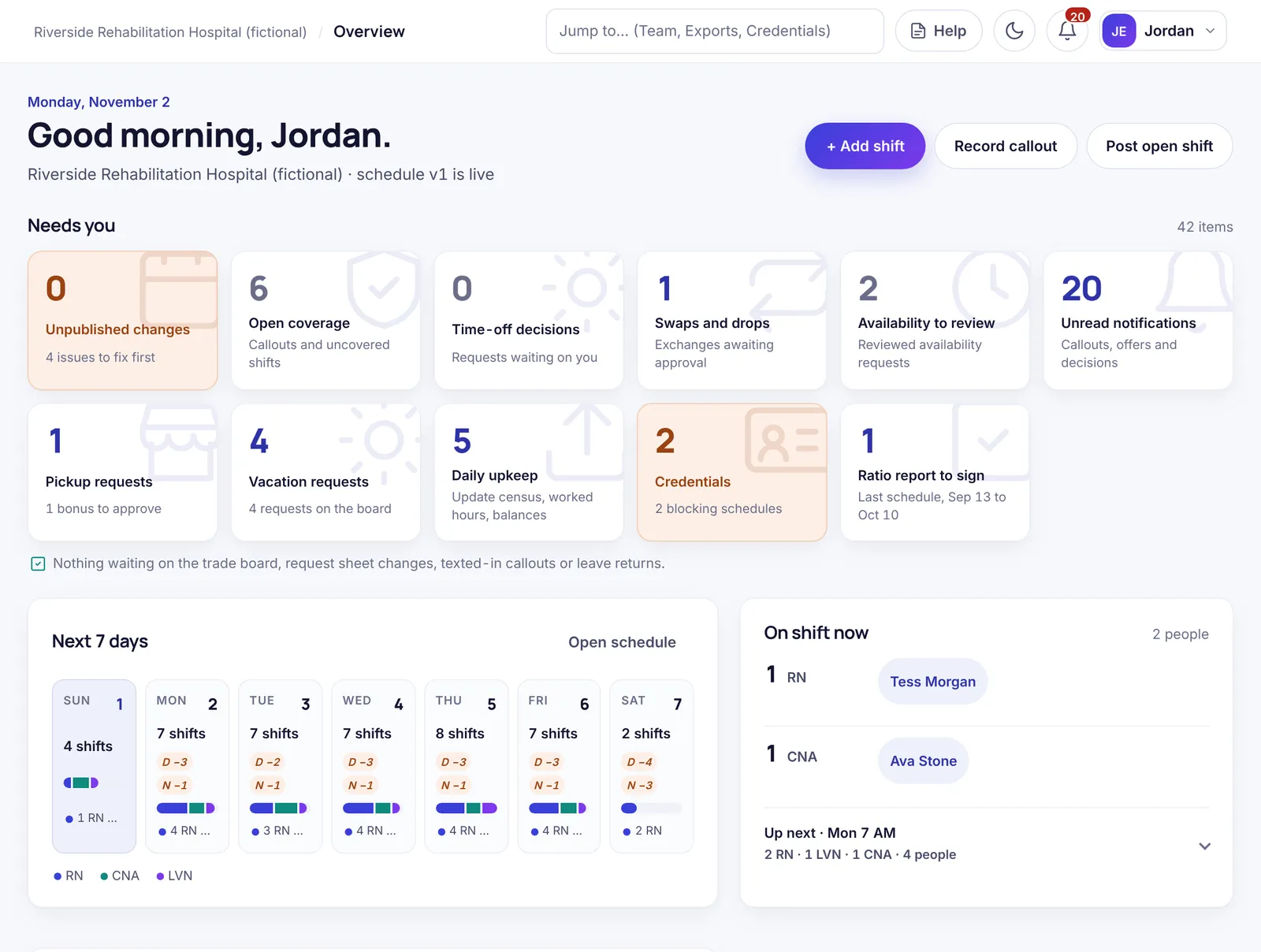
- Daily upkeep: enter census for every shift, upload worked hours and balances. It opens ReportsUploads (menu path).
- Next 7 days: shifts per day with Day (D) and NOC (N) gaps against core staffing.
- On shift now: who is working right now, and who is up next.
During the day: coverage and approvals
| Task | Where | Guide |
|---|---|---|
| Record and fill a callout | CoverageCallouts (menu path) | Callouts |
| Post an open shift, approve pickups and bonuses | CoverageMarketplace (menu path) | Open shifts and pickups |
| Approve trades, swaps and drops | CoverageTrade board (menu path) | Trades, swaps and drops |
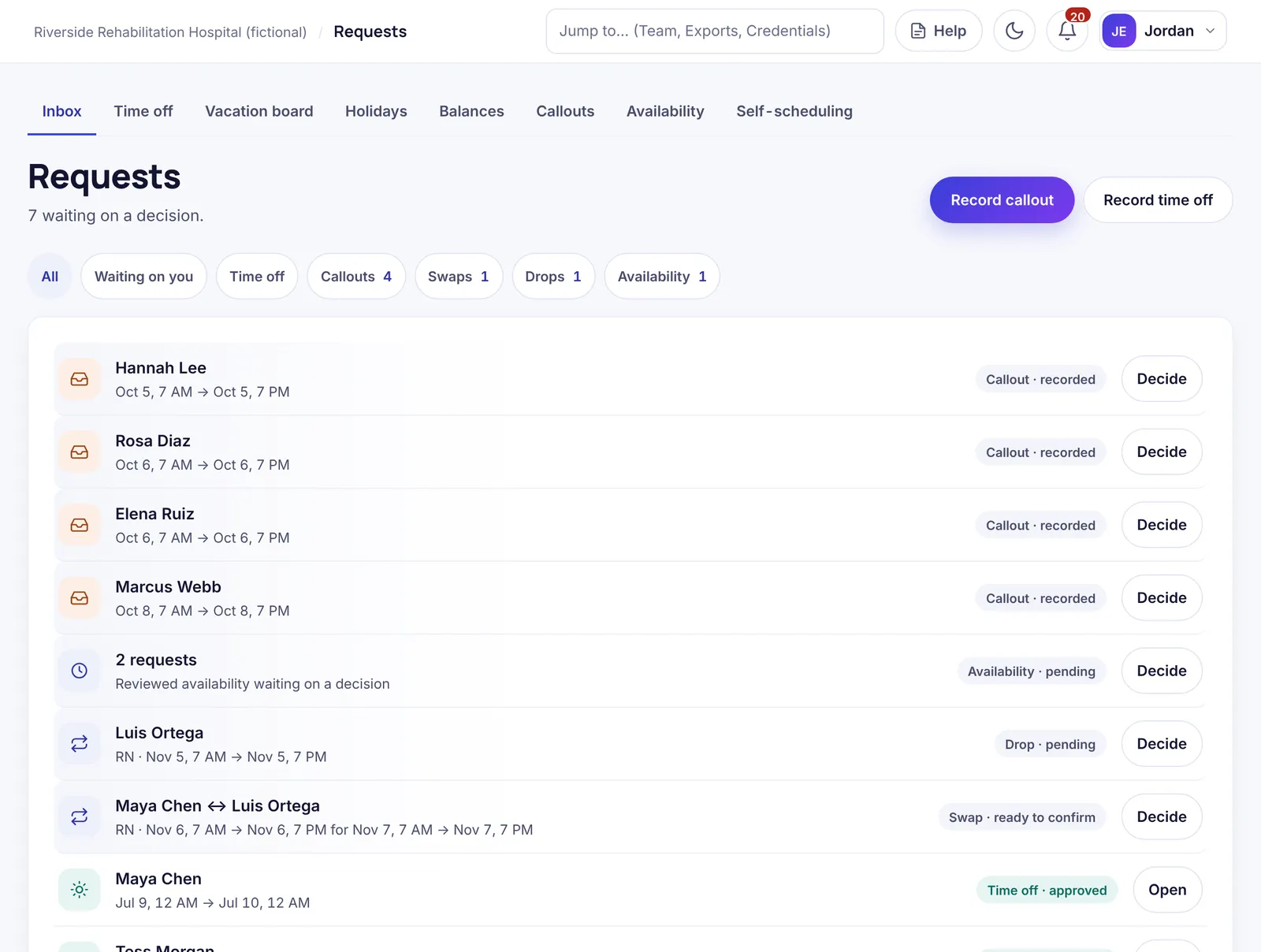
| Decide time off, availability, callouts | RequestsInbox (menu path) | Time off |
| Vacation weeks and holiday staffing | RequestsVacation board (menu path) | Vacation board |
Every week
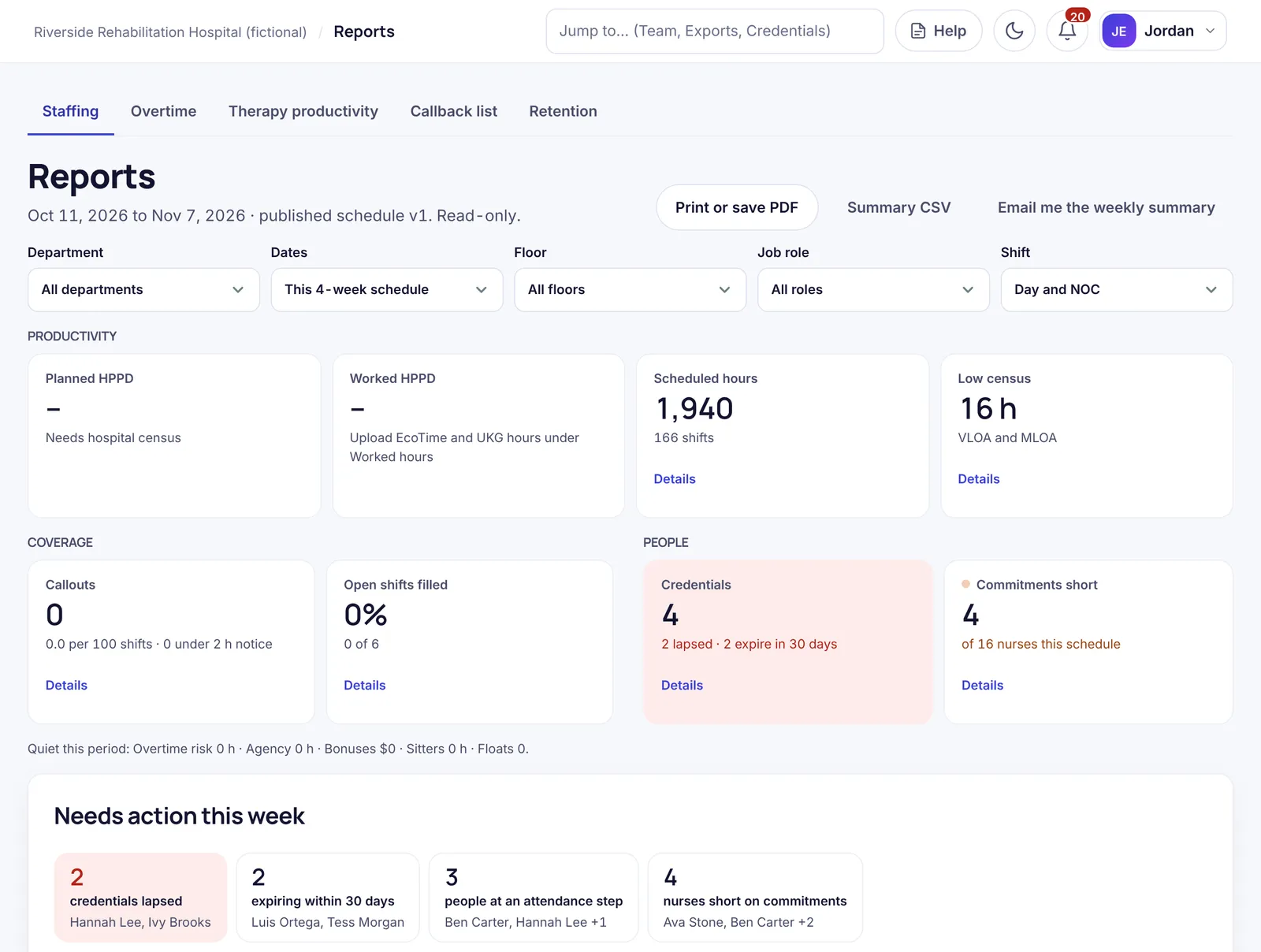
- Read ReportsStaffing reports (menu path): HPPD against budget, premium hours, callouts by week, open shifts filled, and who is near an attendance step. Email me the weekly summary sends it to you.
- Upload worked hours from UKG and EcoTime on ReportsUploads (menu path) so Worked HPPD and overtime use real hours.
- Check PeopleCredentials (menu path) for lapsed and expiring cards.
- Look at ReportsCallout patterns (menu path) for people near a step.
Every schedule period (4 weeks)
Open the request sheets
RequestsSelf-scheduling (menu path): set the window and deadline. Staff mark days off and preferences and sign. Remind nudges anyone who has not signed.
Generate the schedule
After the deadline, Generate schedule versions proposes a draft from the request sheets, commitments and core staffing. Nothing is written until you apply a version.
Adjust the draft
Edit on ScheduleWeek view (menu path). Drafts are private; staff see nothing until you publish. Use Bulk edit and Copy shifts for repeats.
Review and publish
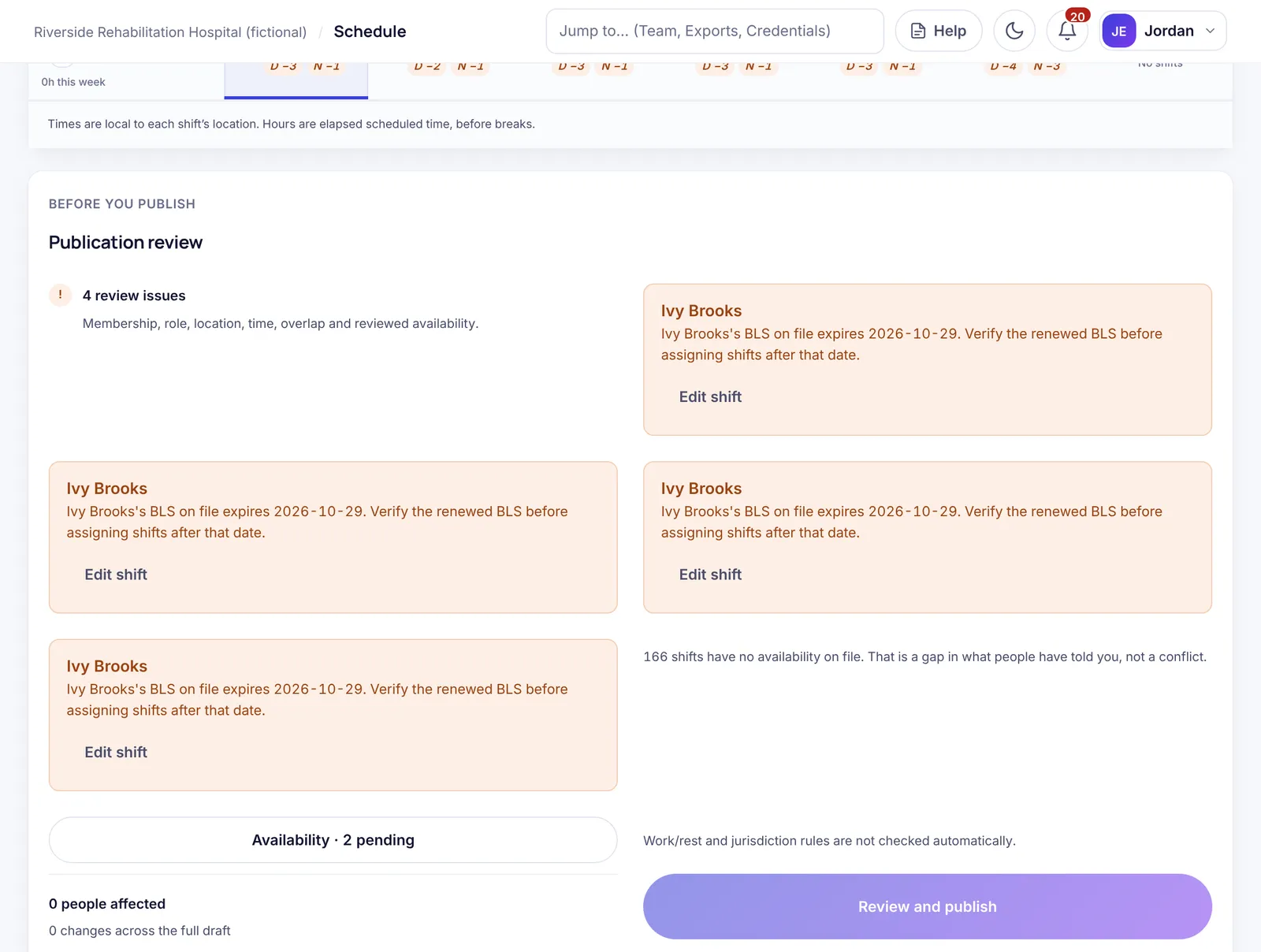
Publication review lists every issue (credentials, ratio, overlaps, availability). Fix or acknowledge them, then Review and publish. Each nurse gets one notice with their schedule.
Close the pay period
Every two weeks, ReportsTimekeeper export (menu path) gives timekeepers the hours to key into UKG and EcoTime, and the pay period checklist on ReportsUploads (menu path) shows what is left.
People and setup
- Add and invite staff on PeopleTeam (menu path) and PeopleBulk invites (menu path). See Team and access.
- Access levels decide what someone can do; job roles only describe the work. See Roles and access levels.
- New hires, orientation and skills fair: PeopleOnboarding (menu path).
- FMLA, CFRA and other leaves: PeopleLeave cases (menu path).
- Post memos staff must acknowledge: EngageAnnouncements (menu path).
Related
Screenshots come from a fictional demo hospital, so names and numbers will differ from yours. Something here out of date or unclear? Email support@attuneops.net.