Read your schedule
For staff · 2 minute read · Checked
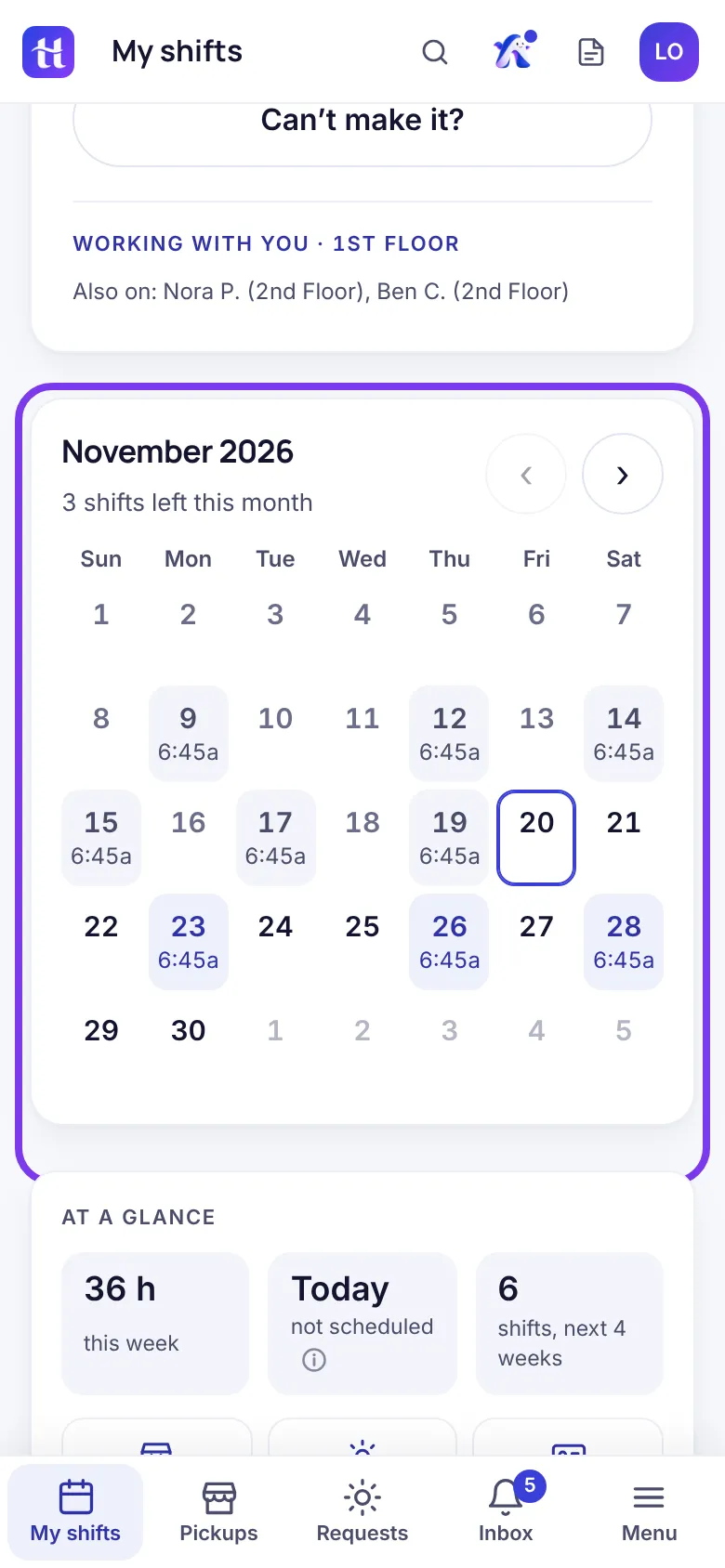
My shifts is the first page you see. It always starts with your next shift, so you never have to hunt for it.
Only posted shifts are real. If a day is not posted yet, the page says so.
Find a shift
- Tap My shiftsIt is the first button at the bottom of your phone.
- Check Your next shiftThe card shows the day and the time you start.
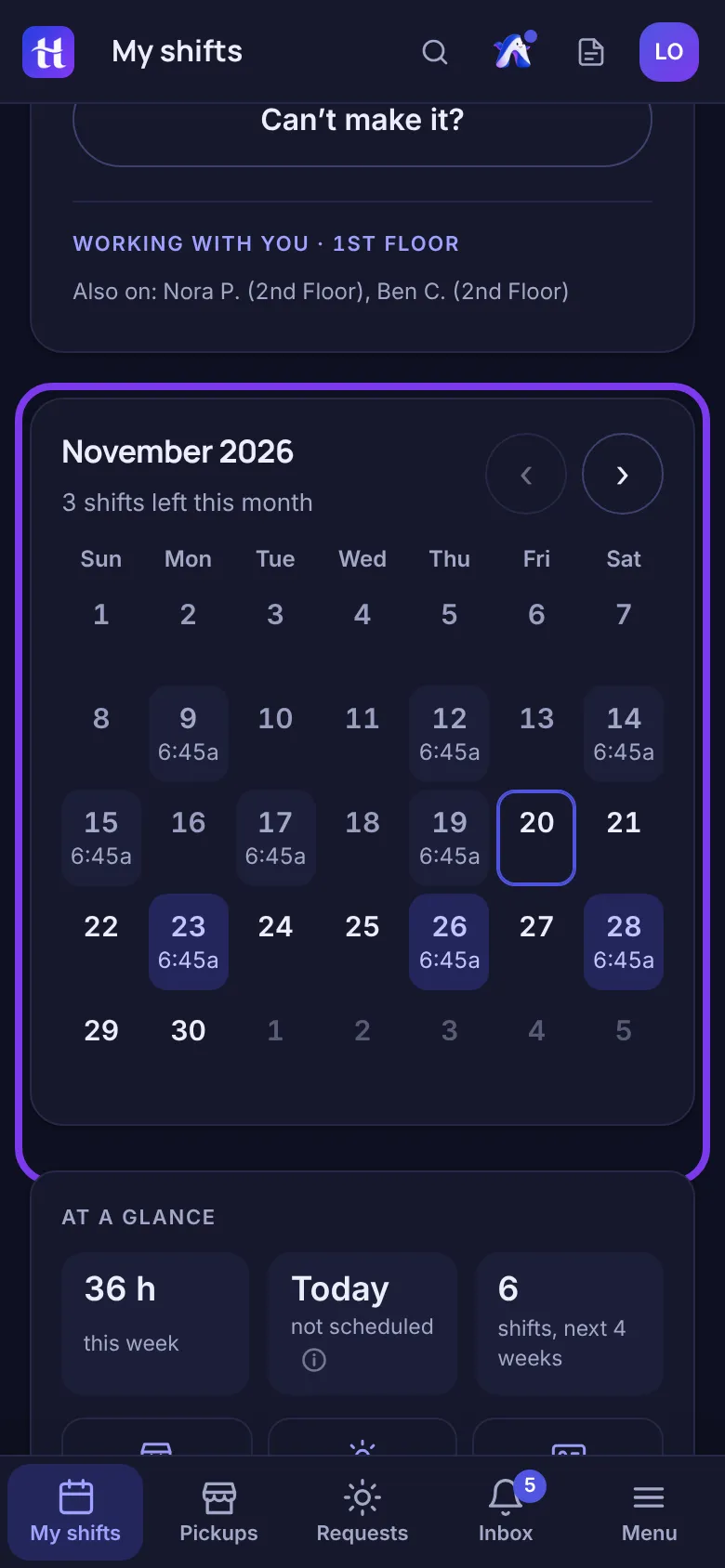
- Page the calendar by monthUse the arrows beside the month. Each day you work shows its shift.
Days not posted yet
Past the last posted day, the calendar shows what you asked for on your request sheet: Day, Night or Off. Those are your asks, not your schedule.
Good to knowThe line under the title says how many shifts you have and the last day that is posted.
Open My shifts
Stuck? Ask your charge nurse. In AttuneOps, Report a problem is at the bottom of every page.